Setting up Slack as an alerting channel is simple:Documentation Index
Fetch the complete documentation index at: https://checkly-422f444a-tnolet-slack-app-channel.mintlify.app/llms.txt
Use this file to discover all available pages before exploring further.
- First, install the Checkly Slack App into your Slack Workspace by going to your integrations page and click “Connect Slack Workspace”.
- Then, head to your alert settings, click “Add more channels” and select a new Slack channel.
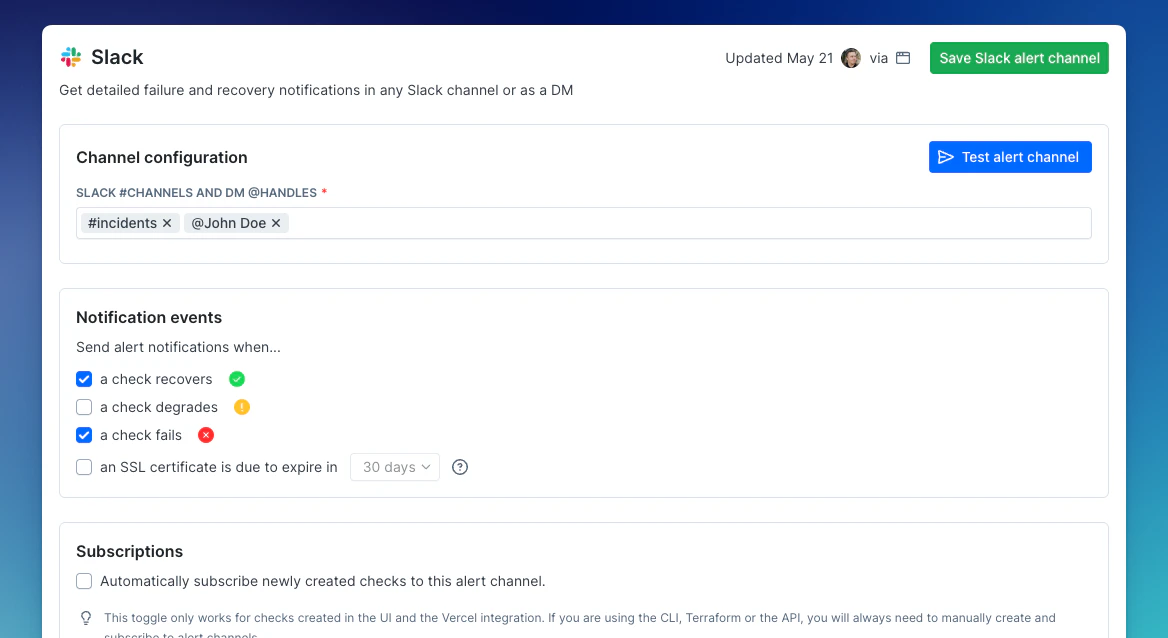
@Checkly.
Example Failed Slack Alert
For each check and / or monitor, the Slack alert message contains key information, a possible root cause analysis and key actions like rerunning the check.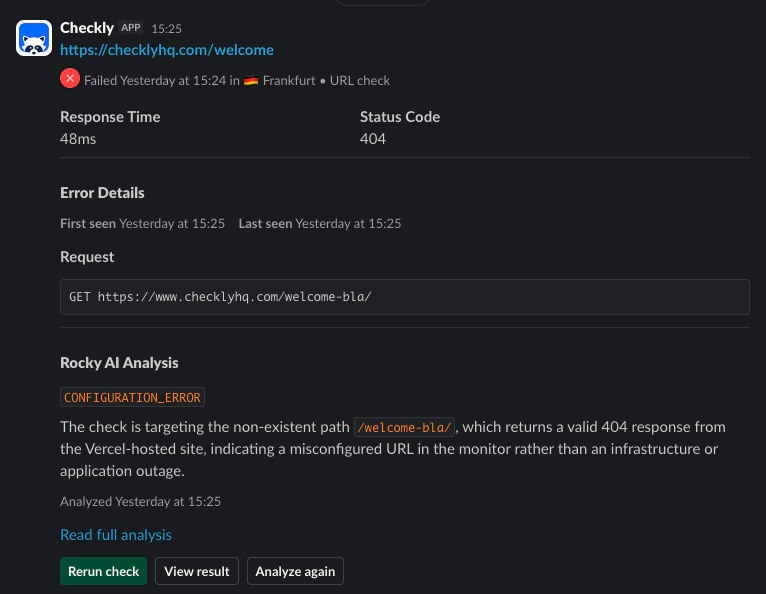
Example Recovered Slack Alert
From the recovered Slack message, you can see the timestamp as well as a link to the check itself.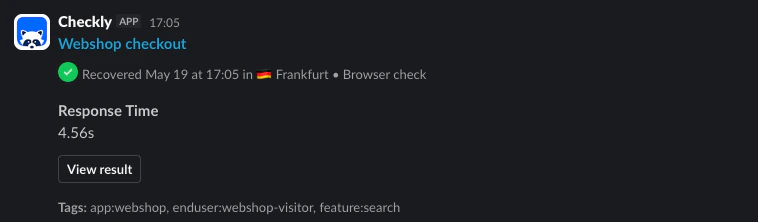
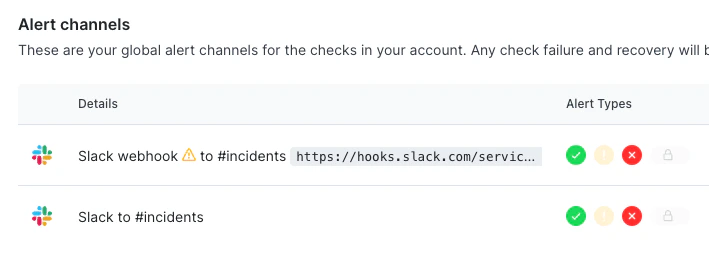
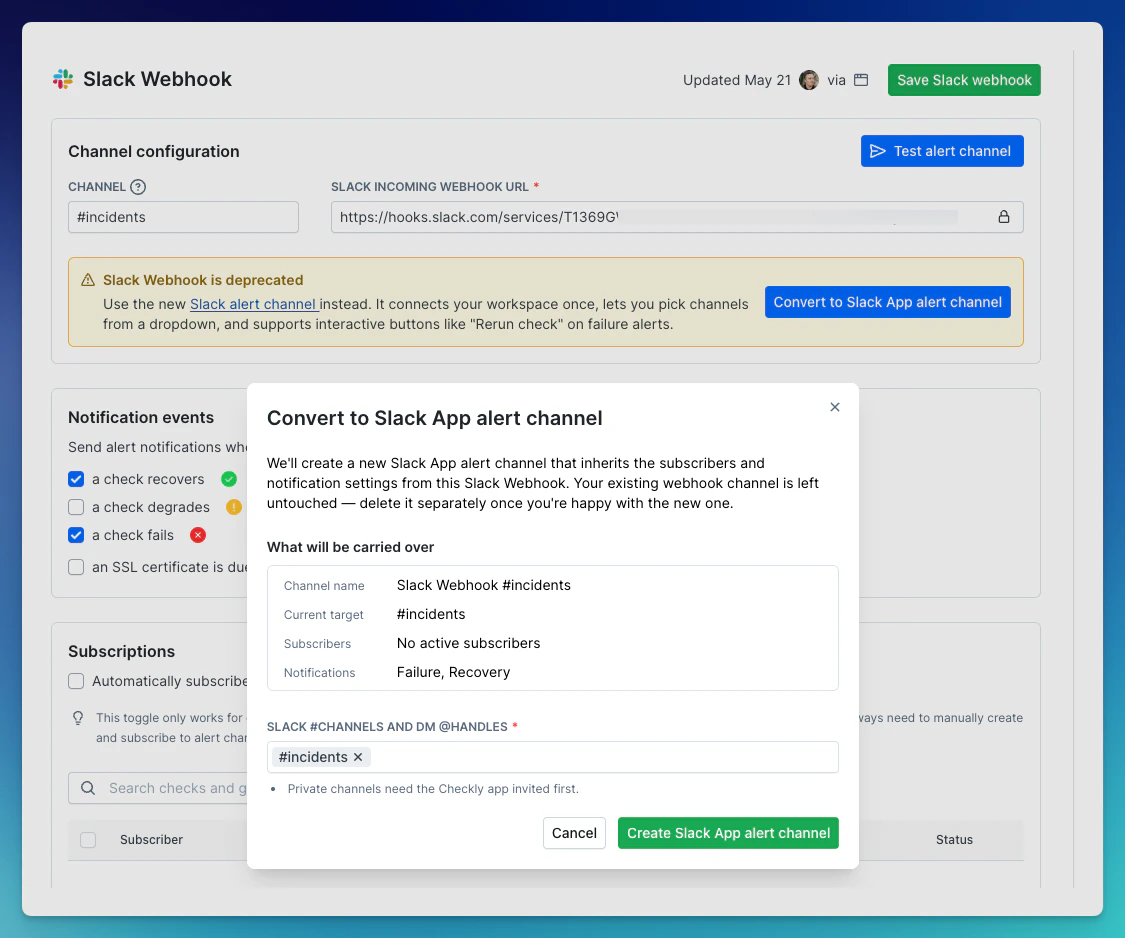
Migrating from the deprecated Slack webhook alert channels
Checkly previously only had Slack webhook based alert channels. These types of webhooks have been deprecated by Slack and are now also deprecated by Checkly. These webhook channels will keep working; we have not set a hard end-of-life date. You can recognize the deprecated channel in your alert channels list. It is named “Slack webhook” and has an alert icon.